Capture on a controlled schedule
Use screenshots as a supporting signal alongside tracked time rather than a separate review system.
New Worklix brings monitoring, time tracking and collaboration into one workforce platform.
See pricing
Screenshot monitoring should make a workday easier to understand, not turn every moment into surveillance. Worklix keeps capture optional and connects each image to the employee, time and activity record managers are already reviewing.
Use screenshots as a supporting signal alongside tracked time rather than a separate review system.
See the visual beside the time window, employee record and surrounding activity instead of interpreting it in isolation.
Use blur and access settings to limit unnecessary detail when a less intrusive view is enough.
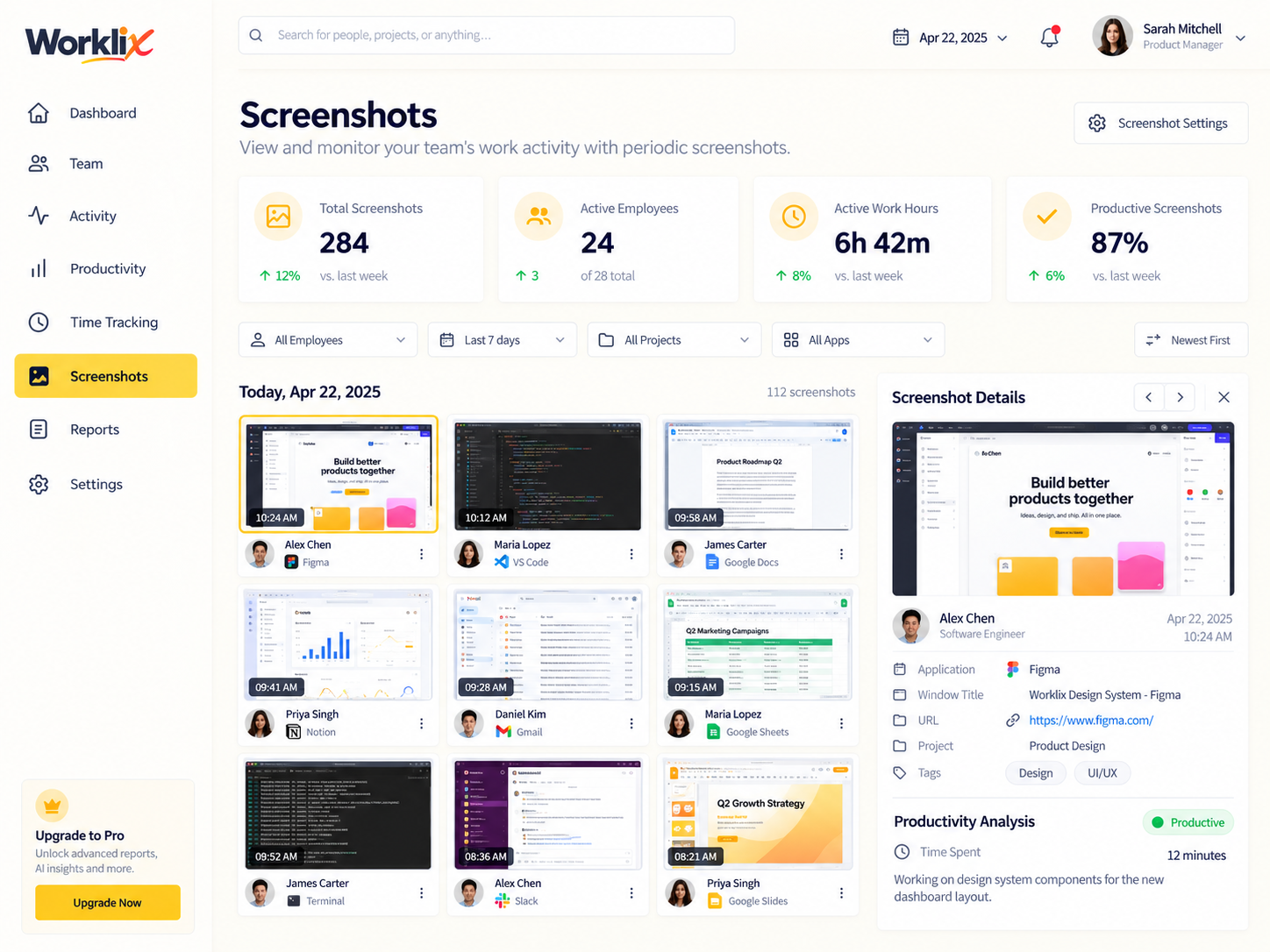
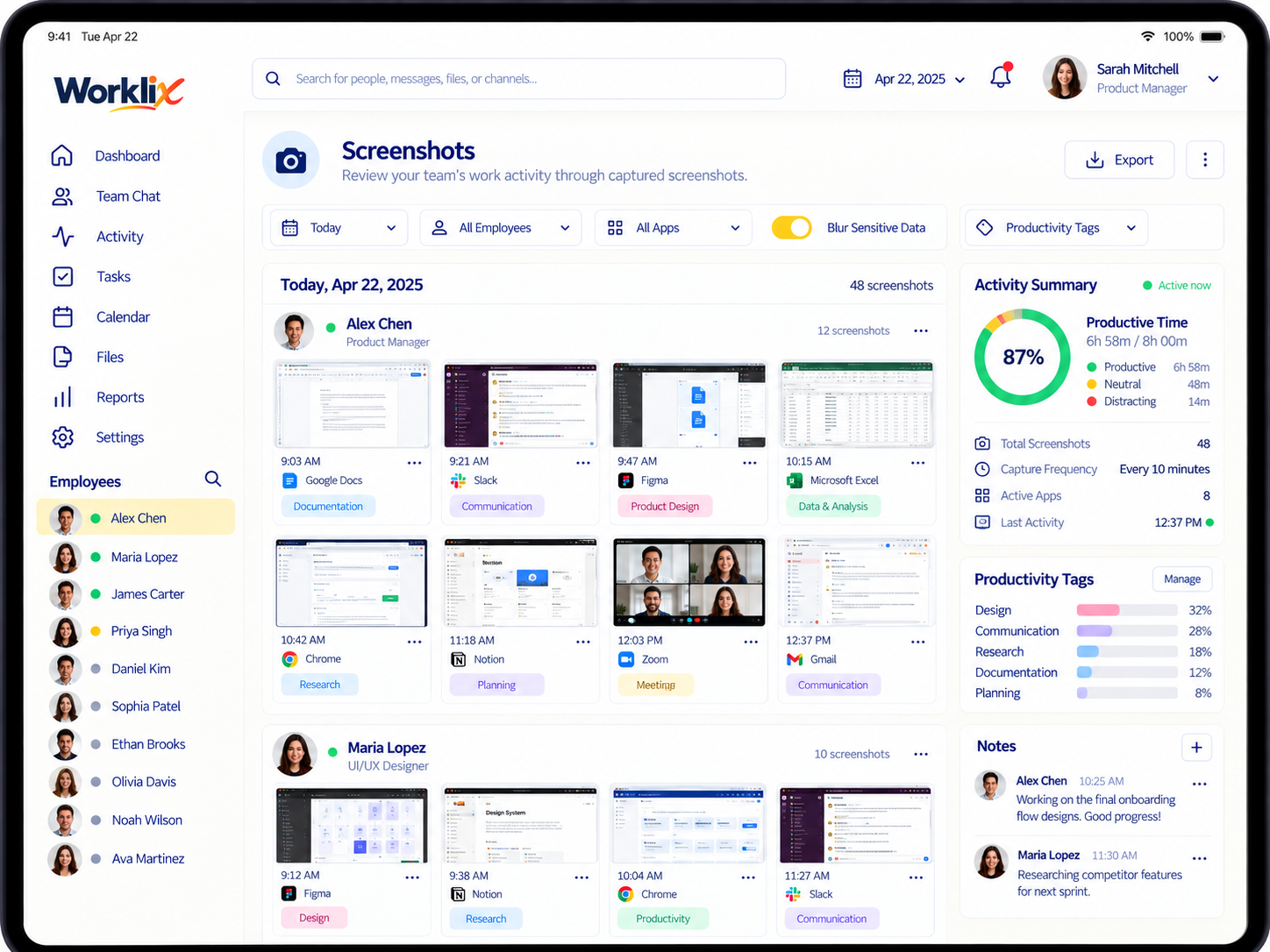
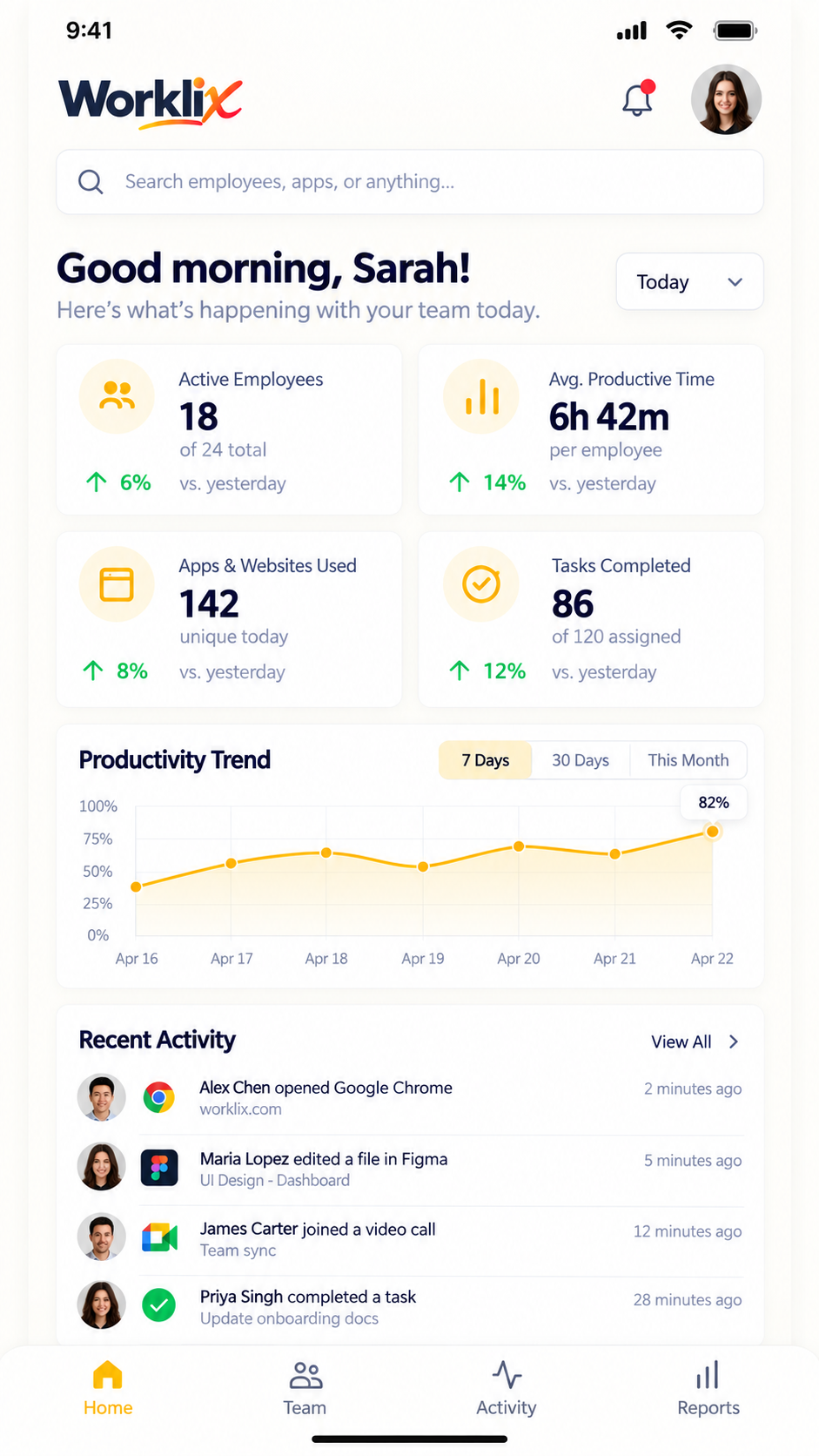
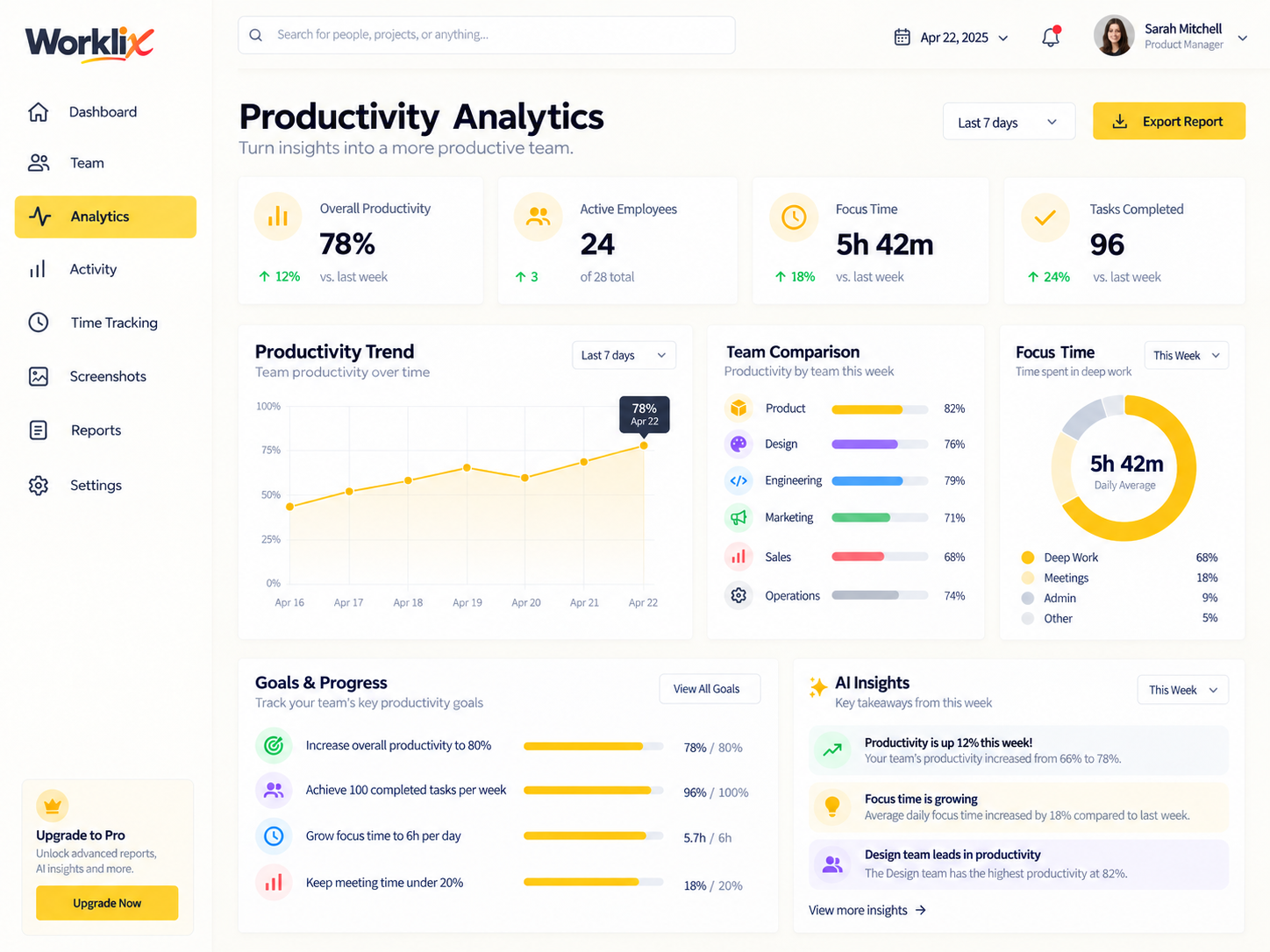
Expand from a quick screenshot glance into the wider activity context, then use the surrounding timeline to decide whether anything actually needs attention.
Open the screenshot beside the exact employee and timestamp instead of reviewing the image as a standalone signal.
Compare the image with tracked time, apps and activity level so a single frame does not carry more meaning than it should.
Confirm the record, open an exception or move on when the wider workday shows nothing else needs attention.

Privacy controls are part of the screenshot workflow, not an afterthought. Worklix is designed so teams can choose whether screenshot detail is useful, when blur should be used and who should have access to the visual record.
Keep the general work context visible while reducing exposure of text or sensitive content.
Keep screenshot visibility aligned with the managers and administrators who actually need it.
Use a practical retention window so visual records do not stay available longer than the workflow requires.
Filters and timeline context help managers move directly to the employee, time window or activity period they need to review, reducing unnecessary manual inspection.
Focused activity · screenshot available
NormalProtected screenshot · privacy setting applied
ProtectedActivity dropped below the team baseline
ReviewNormal tracked activity resumed
NormalDifferent workflows need different levels of visual confirmation. Keep the feature configurable so screenshot use follows the team’s actual operating model and privacy expectations.
Enable screenshot review where visual proof or client accountability matters, while leaving it off for teams that do not need it.
Use a controlled capture frequency rather than constant imagery, keeping visual context proportional to the review need.
Keep screenshots visible only to people with a legitimate operational reason to review them.
A visual record should shorten the review, not create another place to investigate. Worklix keeps the screenshot attached to the same time and activity context so managers can decide what needs follow-up without opening a separate workflow.
Workspace · 87% active
Continuous tracked session · normal app pattern
Record confirmed and review closed.
No extra review queue, no duplicate notes and no disconnected evidence.
Use screenshots as a configurable support layer for tracked activity, with privacy and access settings that fit the team’s actual review process.
Yes. Screenshot capture can be treated as an optional monitoring layer for teams that need visual context, rather than a requirement for every employee or workflow.
Worklix can support blurred screenshot views so managers can confirm general work context without needing readable detail from the captured screen.
Use screenshots beside the surrounding activity and time record. A single image is more useful when it is interpreted with the employee, timestamp and broader workday context.
Access should match operational responsibility. Teams should limit screenshot visibility to the managers or administrators who genuinely need it for the review workflow.
Keep optional screenshots, time, activity and review context in one workforce platform, with privacy controls that support a more deliberate monitoring policy.