
Start from the conversationKeep the people already involved close to the share.
From conversation to shared view01 02 03
Put the same screenin front of the whole team.
When a message is no longer enough, move the discussion onto the actual work. Keep the presenter, participants and shared screen visible together so the team can solve the issue without rebuilding context in another app.
Choose what to showShare the relevant work surface instead of everything around it.
Return with context intactMove back to chat, notes or follow-up without losing the discussion.
Live shareSupport · Review4 participants
AMRJLHDK
Amanda is presentingEveryone is looking at the same work view.
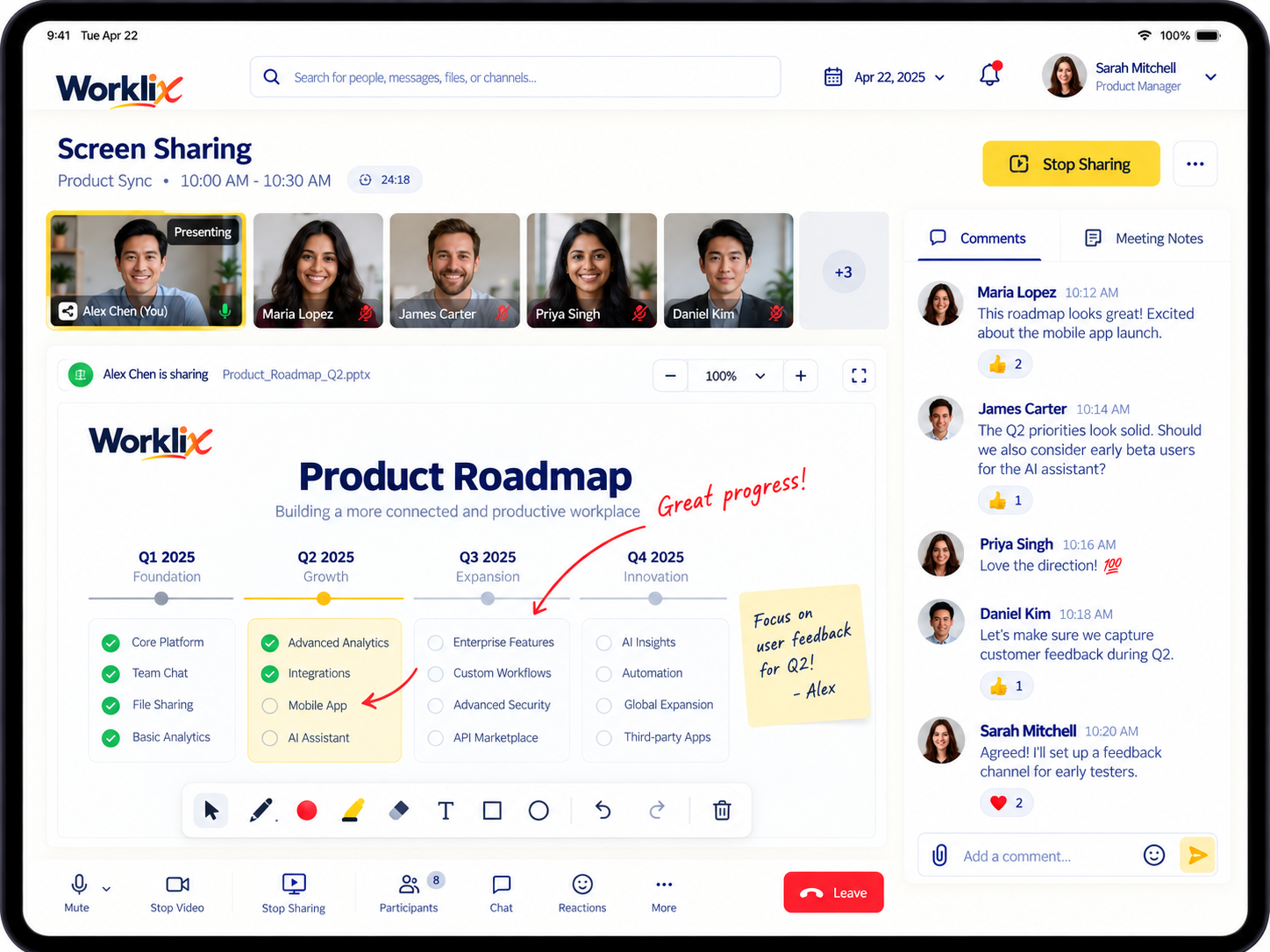
Expanded work surfaceReview the actual work at a useful size.
More room for the workBring the active window forward so details are easier to review together.
Meeting stays lightweightKeep people and session status in one slim control strip instead of a second large panel.
Context stays attachedMove back to the conversation knowing who presented, what was reviewed and where to continue.
Choose the right share
Show only what helpsmove the work forward.
Match the shared surface to the job in front of the team. A focused walkthrough, structured review or support handoff should reveal enough context to act without exposing unrelated work.
Walk through one work surface.
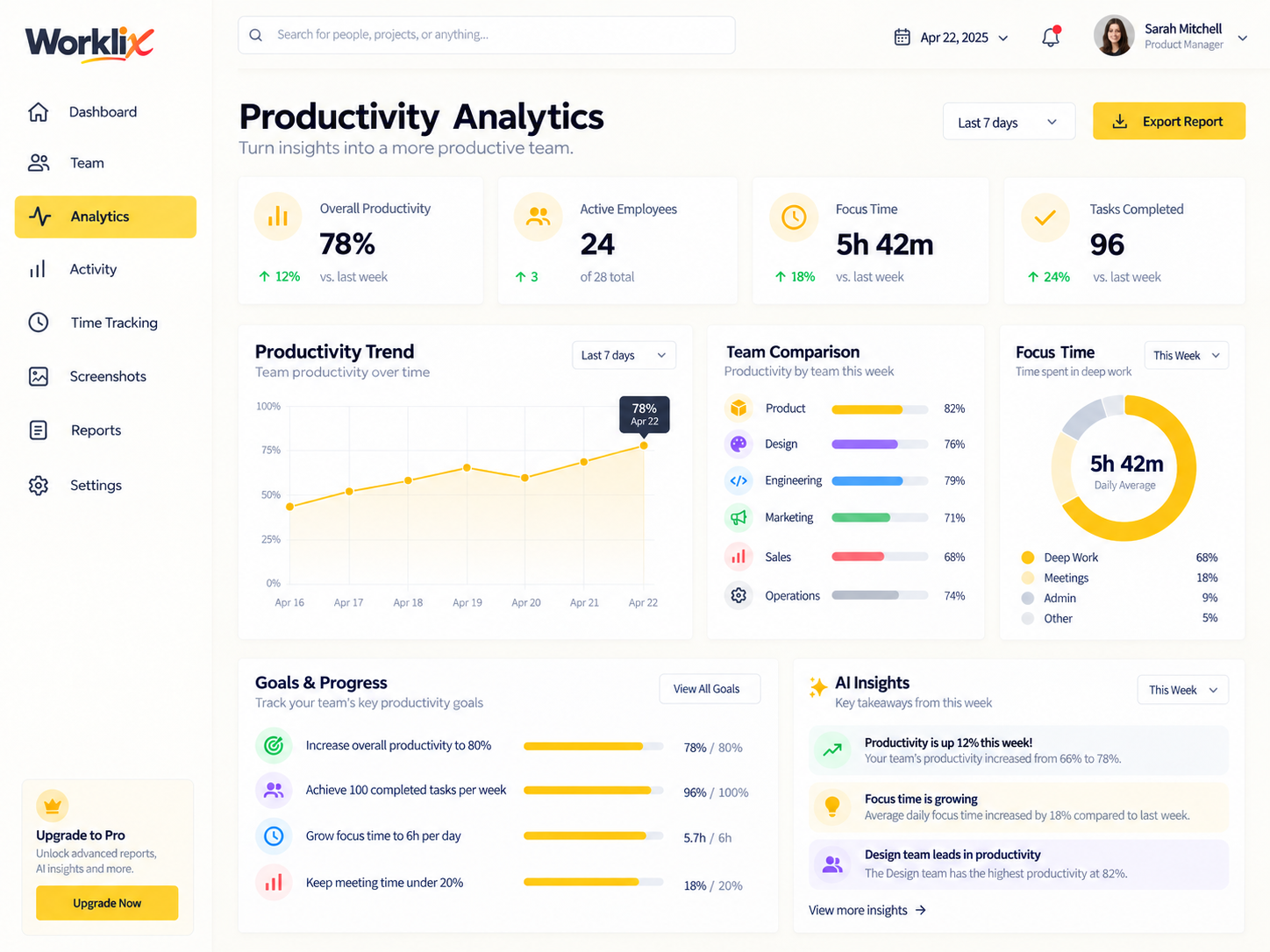
Keep one app, dashboard or browser window at the center of the call so teammates can follow the exact workflow, compare details and react to what matters on screen. The surrounding desktop stays out of the way, the conversation stays easier to follow and the next step becomes clearer before the meeting ends.
Best for walkthroughs→
Keep the people around the work.
Review a shared surface while participant context remains visible, making feedback easier to place and follow.
Best for reviews→
Resolve the issue with the same context.
Use the exact screen that shows the problem, then return to the conversation without rebuilding the handoff from scratch.
Best for support→

Useful for distributed teamsLiveShared work view ScopedRight participants ConnectedSame workflow
Make remote help feelcloser to sitting together.
Distributed teams often need more than a screenshot and less than a long meeting. A shared live view gives colleagues the immediate visual context needed for troubleshooting, review and handoff while keeping the session tied to the same team workflow.
Instead of sending a chain of screenshots or asking someone to recreate the issue, teammates can point to the same interface, confirm the exact step and agree on what happens next. That makes remote reviews easier to follow and leaves less room for context to disappear between the call and the work.
Review the exact screen togetherKeep the right participants in viewReturn to the workflow with the next step clear
A cleaner support path
Move from question to answerwithout losing the trail.
Screen sharing FAQ
Share the work clearlywithout adding tool sprawl.
Use screen sharing when live visual context will solve the problem faster than another thread of explanation.
When should a team use screen sharing?
Screen sharing is useful for live walkthroughs, troubleshooting, reviews and handoffs where seeing the same work surface is faster than describing it.
Can screen sharing stay connected to a team conversation?
Worklix is designed to keep communication and shared work context close together so teams can move between discussion and a live view without rebuilding the surrounding context.
Does everyone need workspace-wide access?
No. Screen sharing should follow the same responsibility and access boundaries used across the workspace rather than expanding visibility by default.
Can distributed teams use screen sharing for support?
Yes. A focused live share can help remote teammates review an issue together while keeping the session connected to the same people and workflow.
One shared view, less tool switching
Put the work on screenwhen the team needs context.
Bring shared screens, team communication and workforce operations into one connected Worklix workflow.